
After I published my LeetCode AI Solver Chrome Extension, I received several questions about how to install and use it correctly.
To make things simple, this article provides a clear, step-by-step guide to get the extension up and running.
Step 1: Download the Extension Source Code
First, go to the GitHub repository:
👉 https://github.com/nirajang20/LeetCode-Solver
You can get the code in either of these ways:
- Download ZIP from GitHub, or
- Clone the repository using Git
Important (ZIP users)
- If you downloaded the ZIP file, extract the ZIP file first
- After extraction, you should have a folder (for example:
LeetCode-Solver) - Save this folder in a safe and permanent location on your computer
⚠️ Do not delete, rename, or move this folder later.
Chrome will disable the extension if the folder location changes.

Step 2: Load the Extension in Chrome
- Open Google Chrome
- Go to:
chrome://extensions/
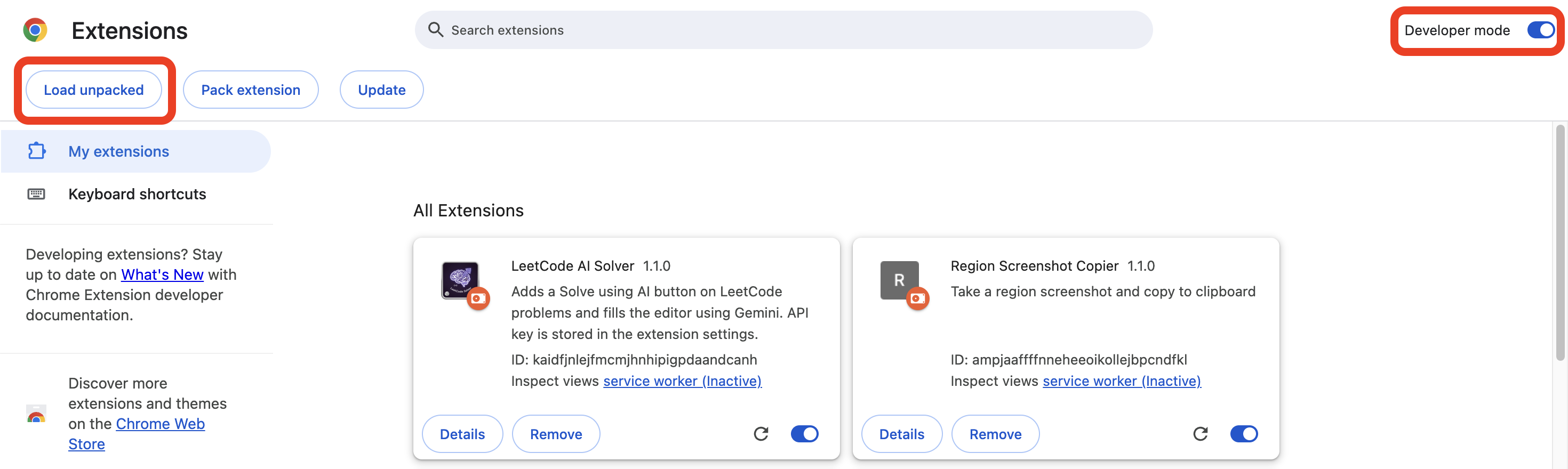
- Turn ON Developer mode (toggle at the top-right corner)
- Click Load unpacked (top-left)
- Select the extracted extension folder (not the ZIP file)
- Click Select Folder
If everything is correct, the extension will now appear in your extensions list.
Step 3: Create a Gemini API Key
The extension uses Google Gemini AI, so you need to create your own API key.
- Go to: 👉 https://aistudio.google.com/api-keys
- Create a new API key
- Copy the generated key

Step 4: Configure the Extension
- Click the Extensions icon in Chrome
- Find LeetCode Solver
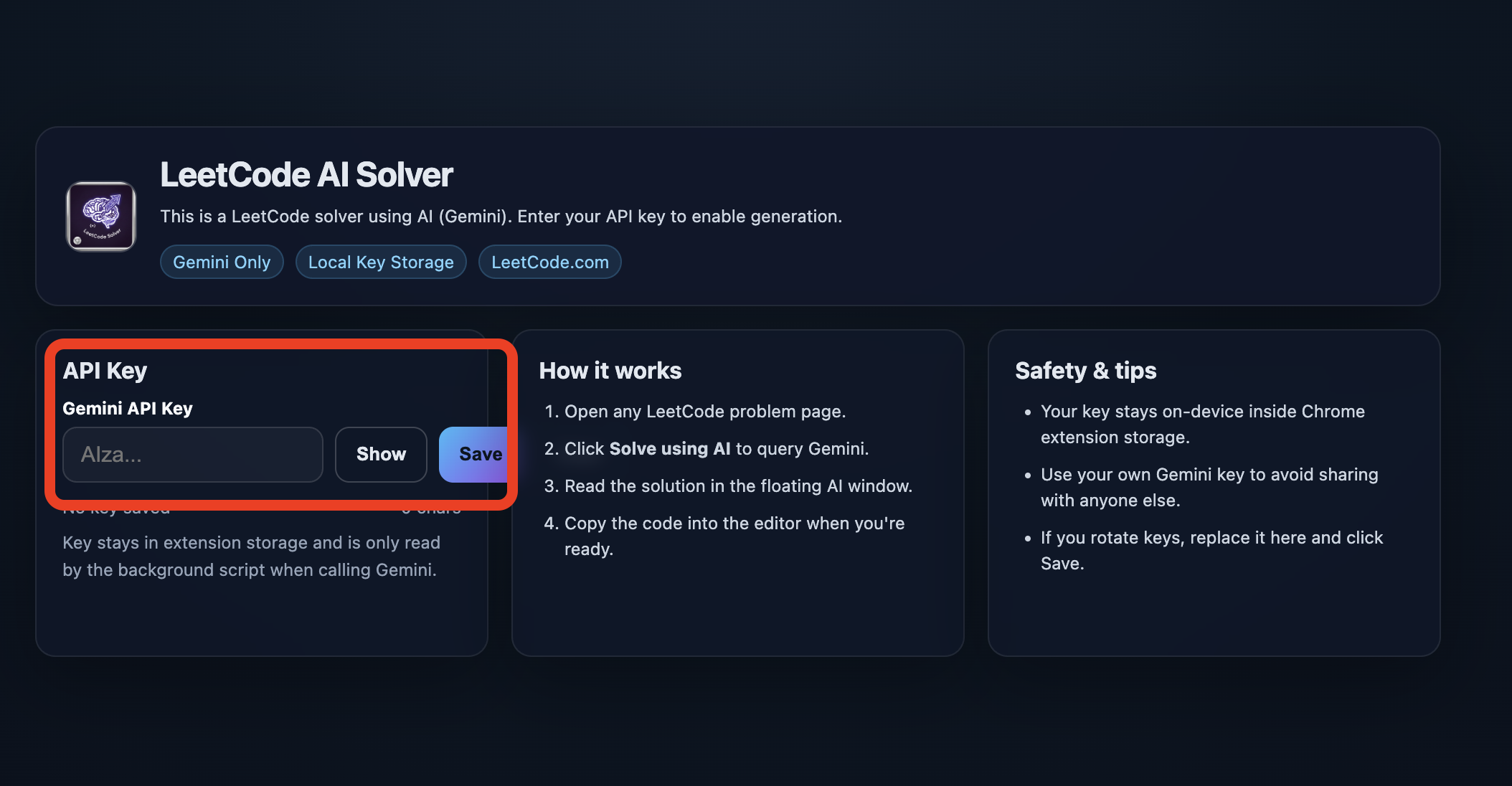
- Click Open options
- Paste your Gemini API key
- Click Save
Note:
Your API key stays on-device inside Chrome extension storage.
Always use your own Gemini key to avoid sharing access with anyone else.
Step 5: Use the Extension on LeetCode
- Go to: 👉 https://leetcode.com/problemset/
- Open any problem
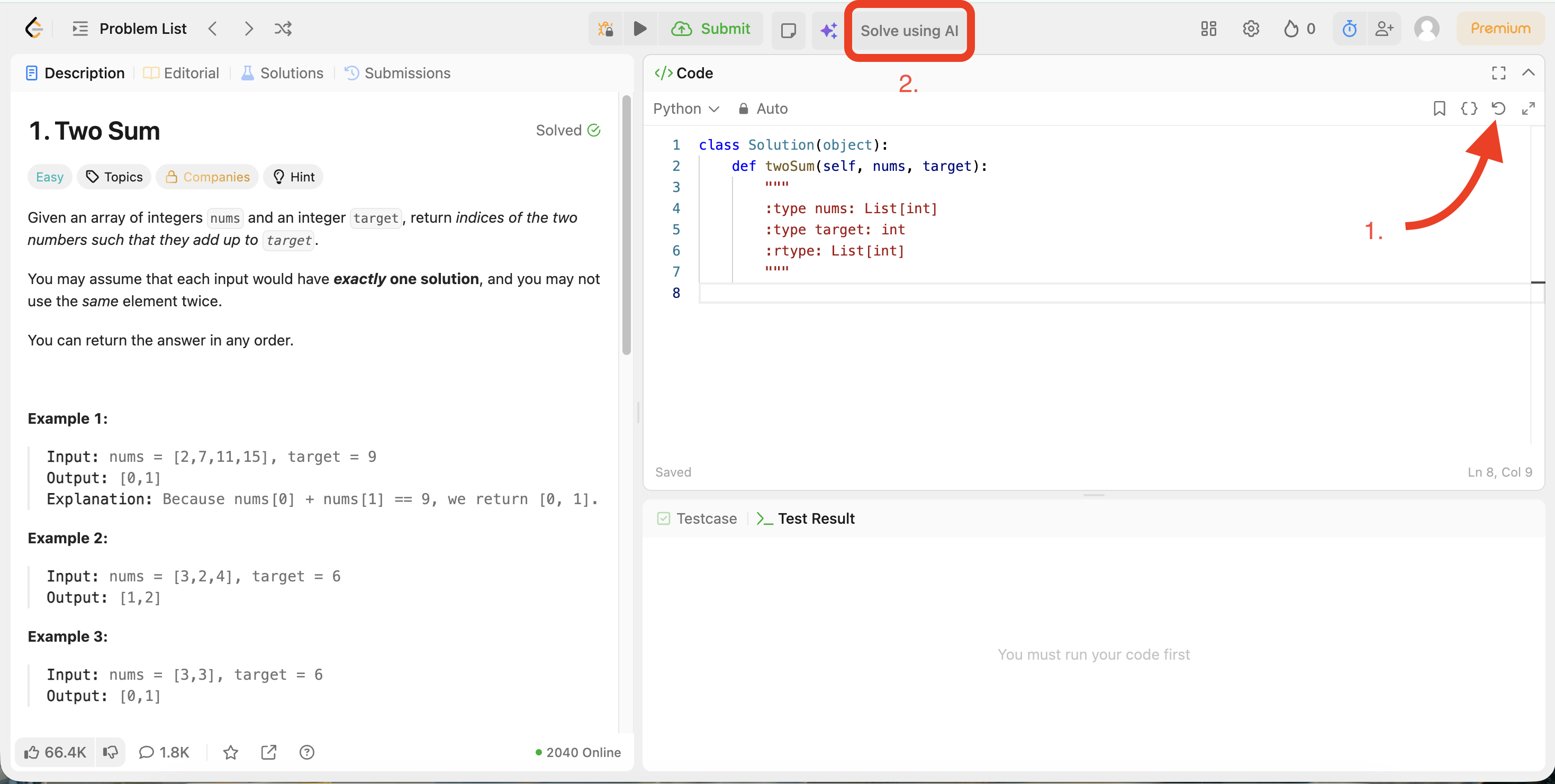
- You will see a “Solve using AI” button at the top-right, next to the Submit button
- Click Solve using AI
⚠️ Important:
Make sure the default function signature in the LeetCode code editor is unchanged.
The AI relies on this function template to generate the correct solution.
Final Notes
- The extension runs entirely inside your browser
- No external servers are used for storing your API key
- Best results come from keeping the original LeetCode function template intact
If you have issues or suggestions, feel free to open an issue on GitHub.
Happy coding 🚀